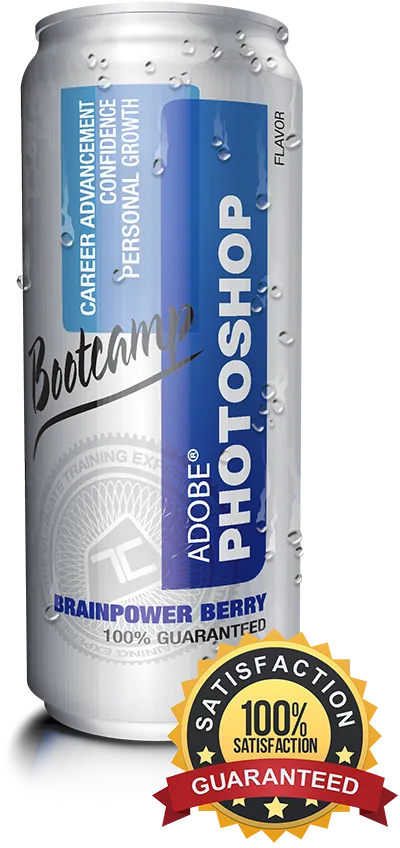
Photoshop 2026
Bootcamp Training Course
This is our most comprehensive Photoshop course, taking you from Photoshop beginner to master in 5 days. Our trainer will take you step-by-step through a series of Real World projects and show you how professionals use Photoshop on a range of different photo editing jobs. Each project is designed to teach you all the essential tools and techniques needed to master Photoshop.
What's Included
- Certificate of Course Completion
- Training Manual
- FREE Class Repeat
Live face-to-face
instructor-led training
This course is ideal for designers, marketers and anyone who is pursuing a career in graphic design. No prior experience of Photoshop is needed. Training available on both Mac and PC.
View our full range of Photoshop training courses, or see below for the detailed outline for Photoshop Bootcamp.
Detailed Course Outline
- What’s new in 2026?
- Lecture: Concepts of Raster vs Vector
- Lecture: Artificial Intelligence features in Photoshop
- Creating & Managing A New Document / Workspaces
- Understanding Import/Export in PS 2026
- Non-Destructive Design Techniques 101
- Content-Aware vs AI: What is the difference?
- Fixing Blemishes using the Healing Tools
- Removing Red Eye, The Clone Stamp Tool
- Working with Artificial Intelligence Tools: Remove + More
- Working with Selections & Non-Destructive Design
- What sets the amateurs apart from the pros
- The Primary 3 Selections Tools (AI Infused Selections)
- Erasing/Deleting vs Layer Masks
- Real-world selections in Adobe Photoshop
- Fundamental Typography in Photoshop / Adobe Fonts
- Creating great looking text: Paragraphs vs Titles
- Stylizing Quotes and credits
- Getting artistic with creative typography
- Basic formatting, design and output for Screen
- Working with Brightness & Contrast
- Working with Color Balance
- Working with Layer Styles and Effects
- Basic formatting, design and output for Print
- Design and layout
- Working with Layer Style Effects
- Exporting work for Print,Web,Social and Film/TV
- Project delivery: Print, Social Media, Film/TV & Beyond
- Common File Formats: JPEG / PNG / GIF / TIFF / More
- New File Formats: HEIC / HEVC / WEBP / JPEG-XR/XL / More
- Saving to the Cloud vs Computer
- Color Correction with Basic Color Adjustment
- Color Correction with Basic Adjustment Layers
- Color Targeting and Manipulation
- Selection Effects Features for Color Isolation
- A Over B / It’s All About Selections
- Matching Color and Contrast Matching
- Edge Lighting Tips and Tricks
- Working with Shadows
- Lighting Effects
- Atmospheric effects
- Fringe Editing Techniques
- Getting More Creative with tools people ignore
- Useful organizations and internal notes
- Amazing Review and Sharing features
- Working with the Pen Tool Fundamentals
- Stroke & Fill Effects across a Path
- Paths as selections or paths as shapes
- Custom Artwork
- Fonts and your rights to use them / Free / Licensed
- Create Text in a Path and linking
- Create and manipulate Text on a Path
- Hidden Text Warping Techniques
- Text Path Effects
- What are Presets?
- Preset Management
- Create Custom Shapes, Patterns, Swatches
- Importing and Exporting Presets
- Fringe Editing Techniques
- Getting More Creative with tools people ignore
- Useful organizations and internal notes
- Amazing Review and Sharing features
- Prepping for various screen formats and color accuracy
- Youtube Covers, Title Screens, Lower 3rds and more
- Presentations / Pitchdecks
- Prepping your Photoshop exports for video editing
- Adobe Premiere, Blackmagic Resolve, Media Composer
- Color Settings and Color Syncing
- Working with Color Libraries (Pantone & More)
- Setting for working with Print
- Settings for working with Screen (social, film/tv, etc)
- Fundamental color tweaking
- The different types of Photoshop brushes
- Organic, utility, cosmetic and creative brushes
- Creating your own brushes
- 3rd Party Free & Paid Resources
- Motion & Radial Blurs
- Lighting & Distortion Effects
- Generated Effects: Flame, Trees
- Useful Legacy Effects
- Notable 3rd party effects
- Working with Neural Filters & AI FX
- Tweaking Neural Effects
- AI Upscaling & Denoising New features
- The Future of Neural Effects
- Learn and work with masks and the Frame Tool
- Collage designs and building templates
- Interactive feature potential
- Designing Dimensions (IG,TW,FB,etc)
- Create Artwork for Instagram & Twitter
- Working with formats / GIF / WEBP / JPEG / PNG
- Introduction to Generative Art (Adobe, Midjourney, ChatGPT, and beyond)
- Limitations of generative art
- Adobe versus the Others
- What is prompting?
- Generative Fill and Generative Extend
- Stylizations / References
- Altering reality in the best and worst ways
- A review of Generative Art / Generative Fill & Extend
- Isolate and remix
- Generating layered content
- More about Prompting
- The new Midjourney 3D and its implications
- Notable AI services that work well with Photoshop
- Color Workflows Defined
- Correcting Tone & Color
- Repairing Images with Curves
- Color Repair Techniques
- Repair Photo Workflows
- Understanding Healing & Awareness
- Revisiting the Healing Tools
- Removing Blemishes & Stray Hairs
- Cross Project Cloning
- More About Cosmetic Brush Sets
- Frequency Separation Methods
- Isolating Skin Tone & Texture
- Re-combining Layers
- Techniques for Re-applying
- More Frequency methods
- An Overview of the Liquify Panel
- Brush Tool Options
- Liquify Filter: Bloat, Pucker, Forward Warp and more
- Real-world Liquifying
- What is Displacement? Professional Uses
- Displacement Workflow
- Mapping graphics and text on difficult objects
- Improving the Distortions
- About Blending Modes and the Classes
- Blending Modes as utilities
- Getting creative with Blending Modes
- Using the Color Blending Mode to Tint an Image
- Mask Blending
- Manually Editing Perspective
- Using Perspective Filters
- Cloning and healing in perspective
- 3D conversions using Vanishing Point
- A Over B / It’s All About Selections
- Matching Color and Contrast Matching
- Edge Lighting Tips and Tricks
- Working with Shadows
- Lighting Effects
- Atmospheric Effects
- Photoshop and Illustrator Relationship
- Photoshop and After Effects Relationship
- Photoshop and Premiere Relationship
- Photoshop and InDesign Relationship
- Photoshop and Other non-Adobe applications
- Amazing Extensions you might want to try
- Technical Previews and Photoshop Beta
- Remapping shortcuts
- Useful preferences and settings
- 3D Substance Viewer (beta)
- Going off-road with Procedurals
- It’s All About Channels
- Working with Levels to create contrast maps
- Putting Channel selections to work
- Removing Distractions or unwanted things in images
- Replacing skies / Breaking down the layers
- What are Raw formats and how do they work
- Does Photoshop even handle raw files?
- What exactly is Camera Raw and what does it do?
- Two ways to work with Camera Raw
- Fundamental Camera Raw editing and output
- Opening & Editing Raw Files
- Breaking down the advanced raw workflow
- A guide to every tool in Camera Raw
- Fixing Exposure Issues / Blemishes and more
- Selective Corrections, Noise, Haze and more
- Working with the new AI profiles and layering
- Camera raw for non-raw formats
- Batch editing in Camera Raw
- Preset collections, profiles and so much more
- Snapshots and other versioning tricks
Our outlines are a guide to the content covered in a typical class. We may change or alter the course topics to meet the objectives of a particular class.